![skuIQ_logo gradient.png]](https://knowledgebase.skuiq.com/hs-fs/hubfs/skuIQ_logo%20gradient.png?height=40&name=skuIQ_logo%20gradient.png)
Step-by-Step Guide
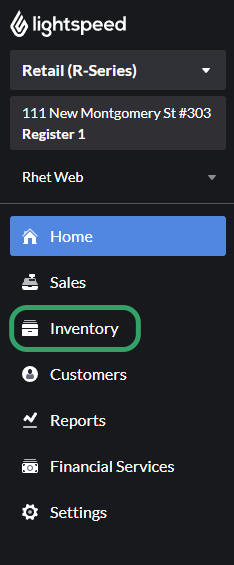
1. On your Lighstpeed R-Series dashboard, navigate to the 'Inventory' tab.
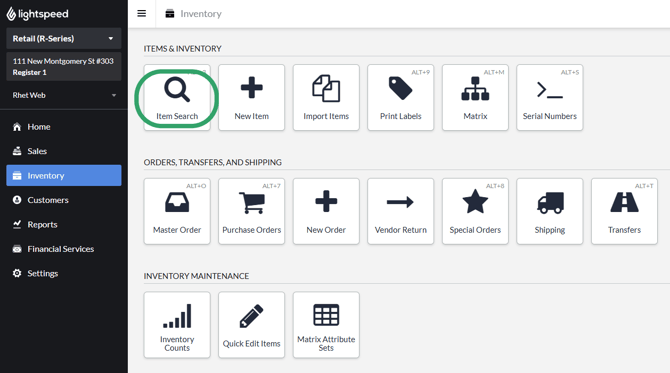
2. Under the 'Items & Inventory' section, select 'Item Search'.
3.On the top-right corner of your screen, toggle on the item types you want to back up. You'll be able to toggle between: Show All Locations, Items w/ Inventory, Items w/o Inventory, and Archived.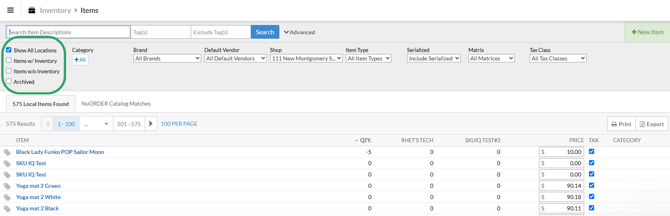
4. Once you have the options you want selected, click on 'Export' in the top-right corner of your page.
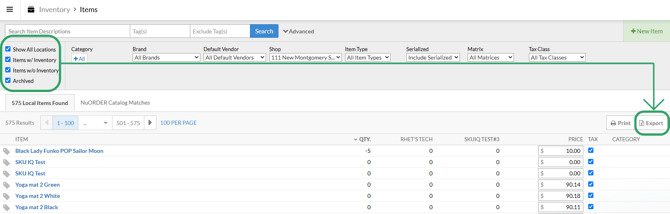
5. And that's it! The CSV File with your backup will be downloaded to your device.