![skuIQ_logo gradient.png]](https://knowledgebase.skuiq.com/hs-fs/hubfs/skuIQ_logo%20gradient.png?height=40&name=skuIQ_logo%20gradient.png)
Step-by-Step Guide
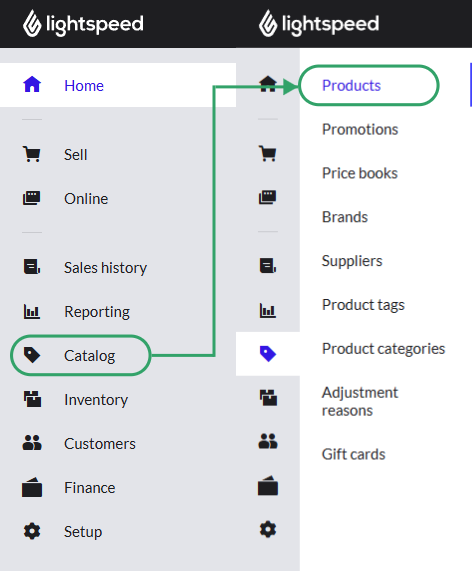
1. On your Lightspeed X-Series online dashboard, navigate to 'Catalog' on the left-hand menu and then 'Products'.
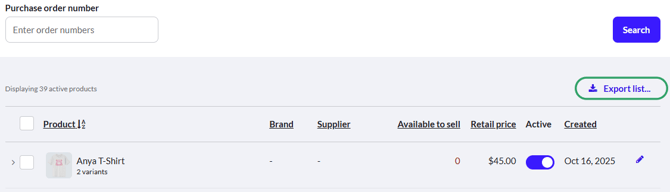
2. Next to the top of your items list to the right, click on 'Export list...'.
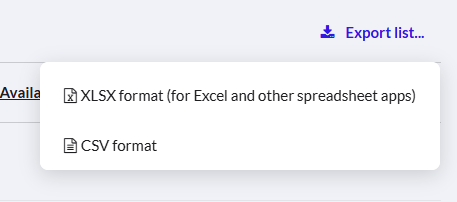
3. You'll be able to choose between an .XLSX or .CSV file, choose whichever format you prefer.
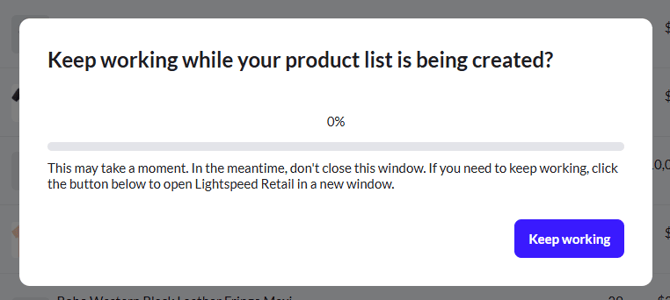
4. Depending on the size of your inventory, this might take a while. Do not close or reload the Lightspeed X-Series page while this process is running.
5. Once the file is ready, it should automatically be downloaded to your device. If it doesn't, click 'Click to start download' to trigger the download manually.
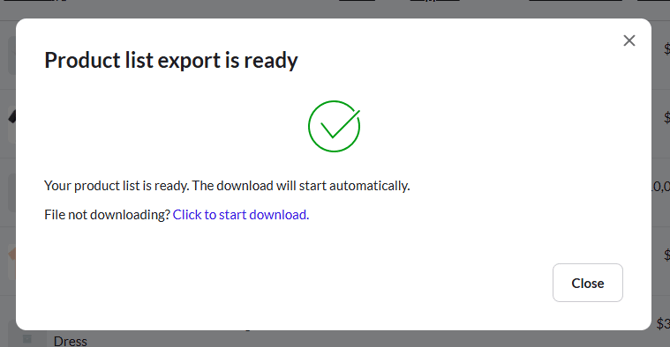
6. And that's it! The file with your backup will be downloaded to your device.