![skuIQ_logo gradient.png]](https://knowledgebase.skuiq.com/hs-fs/hubfs/skuIQ_logo%20gradient.png?height=40&name=skuIQ_logo%20gradient.png)
Step-by-Step Guide
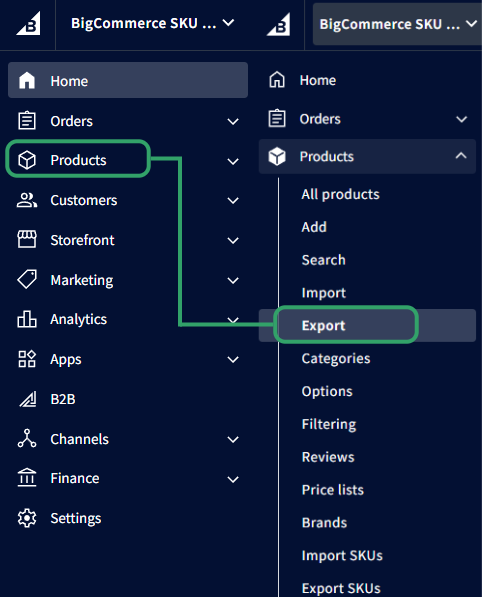
1. On your Lightspeed X-Series online dashboard, navigate to 'Products' on the left-hand menu and then 'Export'.
2. On this page, you can choose between 'Products' if you only have one location on your system and simple items.
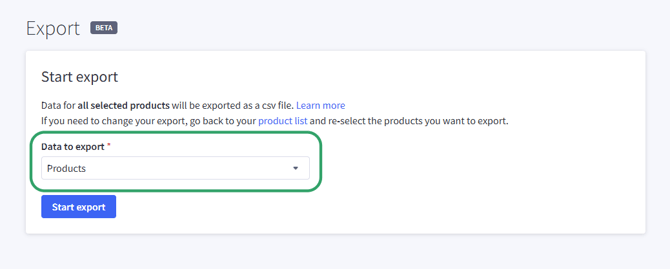
or 'Inventory', which is recommended if you have more than one location set up on Bigcommerce and/or more complex data to retrieve from your items.
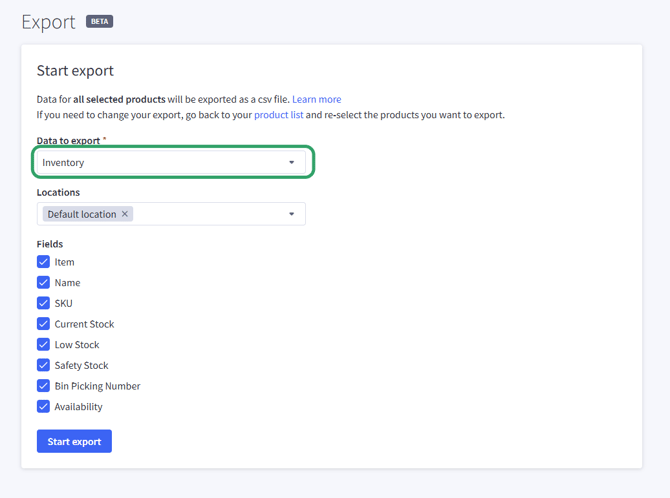
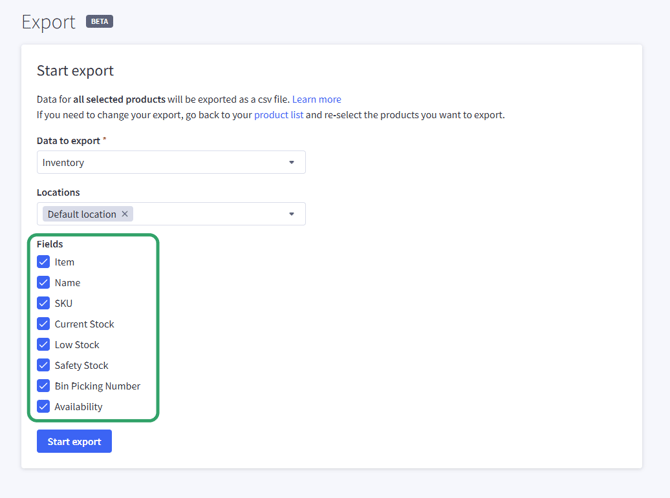
3. If you choose 'Inventory ', specify which locations should be included in the back up.
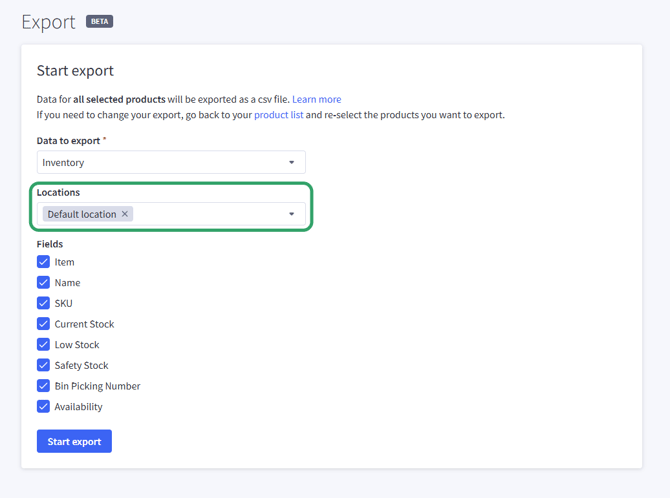 And what fields you want included in your backup export, we recommend having all selected.
4. No matter which method you chose, hit 'Start export' once you are ready.
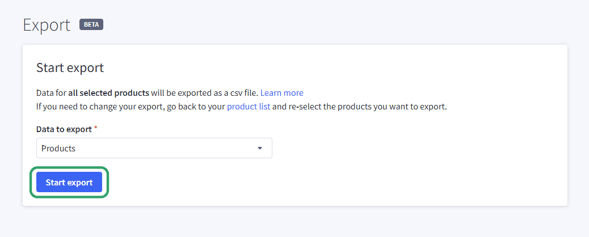
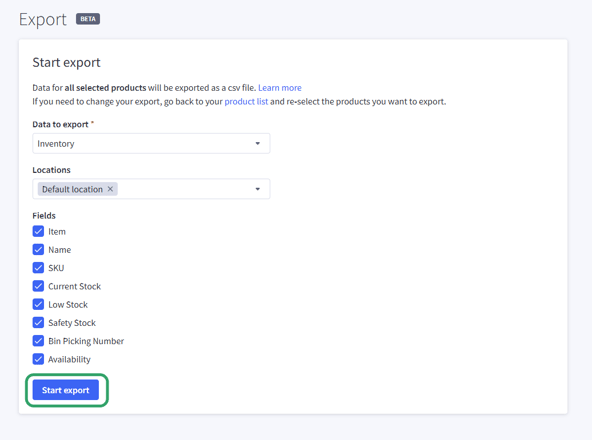
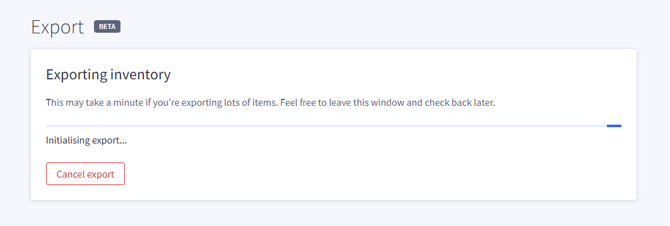
5. The platform will start preparing your file, this may take some time depending on the size of your inventory.
6. Once the file is ready, click on the download icon next to the file name.
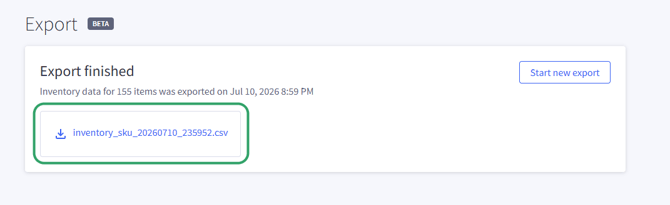
7. And that's it! The file with your backup will be downloaded to your device.