![skuIQ_logo gradient.png]](https://knowledgebase.skuiq.com/hs-fs/hubfs/skuIQ_logo%20gradient.png?height=40&name=skuIQ_logo%20gradient.png)
Step-by-Step Guide.
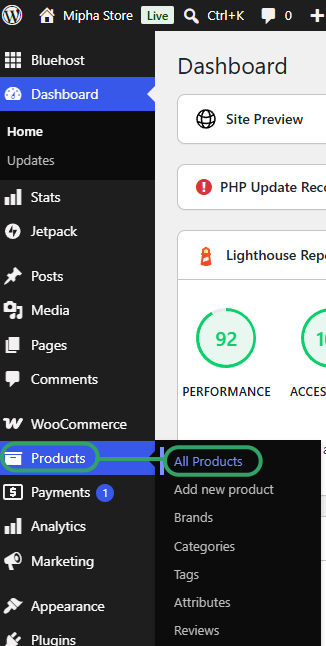
1. On your WordPress dashboard, Navigate to 'Products' and then 'All Products'.
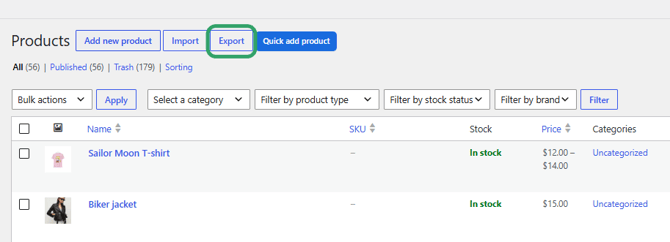
2. Click on 'Export' at the top of your item list.
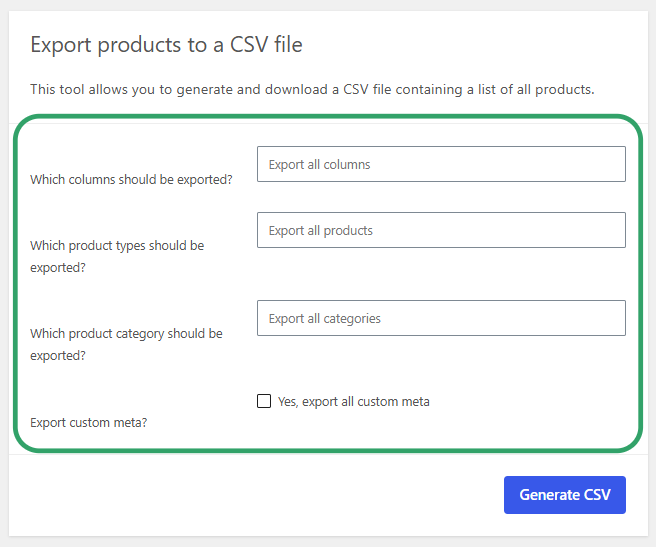
3. On this page, you are able to filter what columns, product tyupes, categories and meta data will be included on your backup, we recommend leaving it as it is so all data is included.
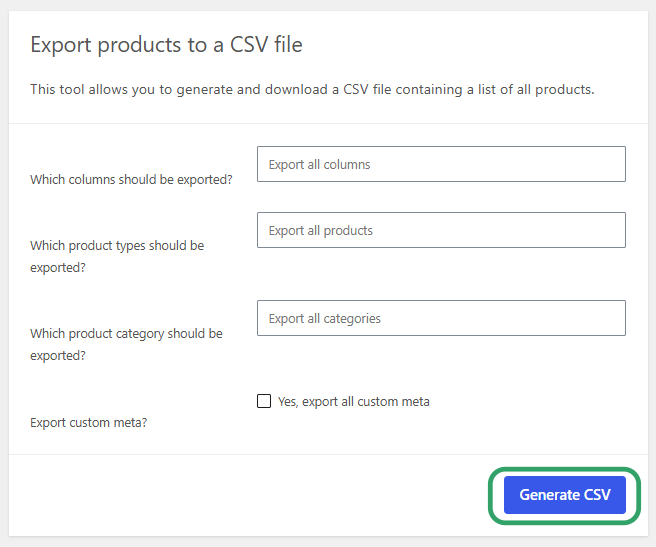
4. Click on 'Generate CSV''.
5. The CSV wll be generated for you. This process might take some time depending on the size of your inventory, so do not close this window while the progress bar is still running.
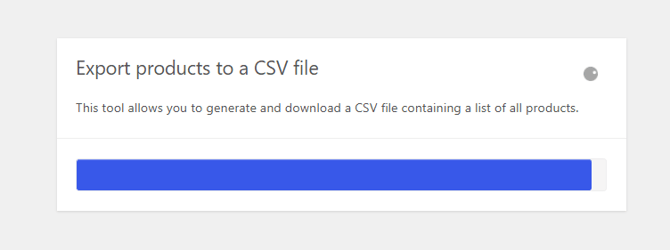
6. Once ready, the CSV will automatically be downloaded to your device. Keep that file in a secure folder in case you need to reference it later.