![skuIQ_logo gradient.png]](https://knowledgebase.skuiq.com/hs-fs/hubfs/skuIQ_logo%20gradient.png?height=40&name=skuIQ_logo%20gradient.png)
Overview
BigCommerce's inventory management lets you toggle inventory tracking on or off for new and existing products, this feature is responsible for monitoring your stock levels, ensuring you know when items are running low. Only with this feature enabled, SKU IQ can accurately sync inventory with your platforms.
If tracking is off, BigCommerce may report zero stock, marking items as "OUT OF STOCK" online, or send a "null" stock value, disabling tracking and risking overselling. This can lead to inventory errors and customer frustration.
Please reference this guide to turn on inventory tracking on your BigCommerce eCommerce and ensure stock quantity sync will be working for your account.
Step-by-step Guide
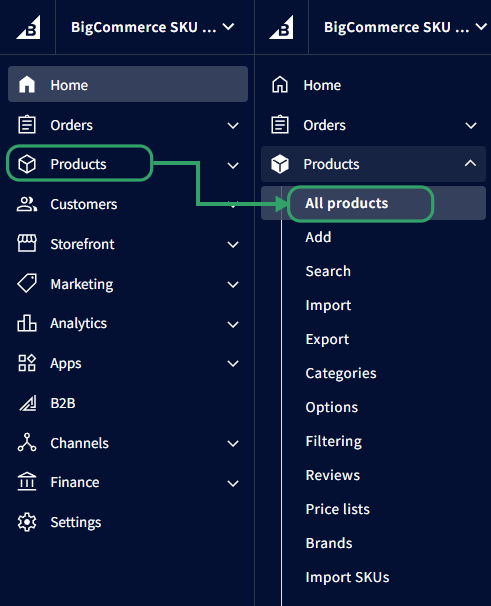
1. On your BigCommerce online dashboard, navigate to 'Products' on the left-hand menu and then 'All Products'.
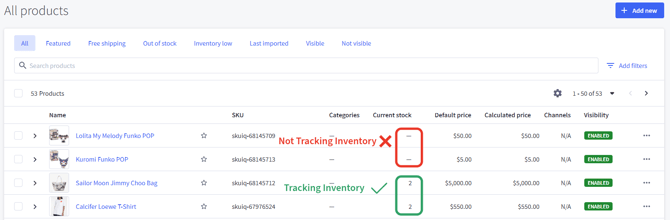
2. On the 'Current Stock' column of your product list, look for items with the dash symbol '—', these are items not tracking inventory.
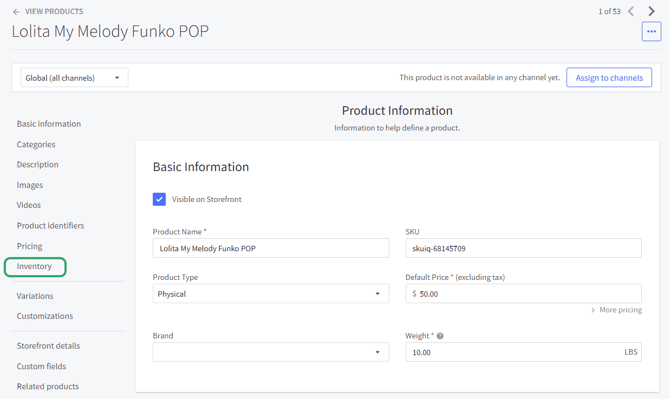
3. Click on the name of the item you want to enable tracking for.

4. On the individual product page, navigate to 'Inventory '.
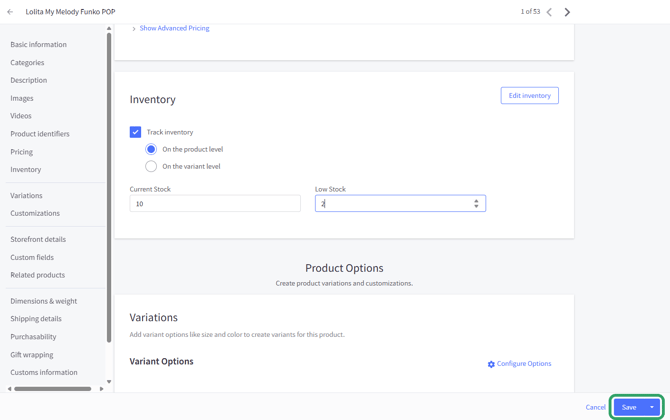
5. And toggle on the 'Track Inventory' option.
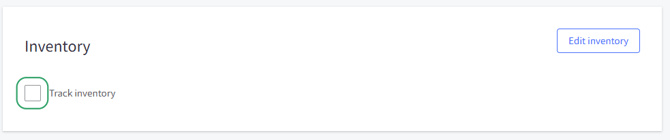
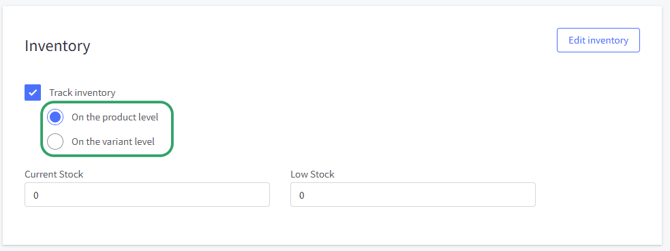
6. You'll be prompted to select a if you want to track inventory based on the product or individual variant level. Select according to your product structure.
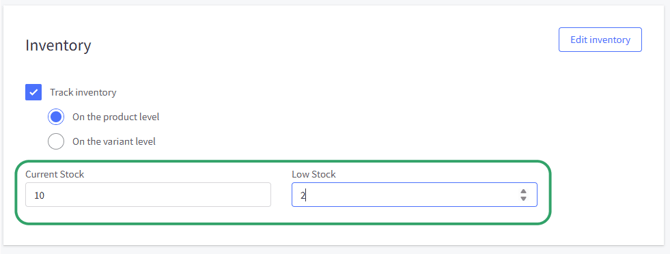
6. If you're working with a item without variants, you'll put in the current stock numbers under the 'Current stock' box like the image below, you can also cofigure your 'Low stock' alert here.
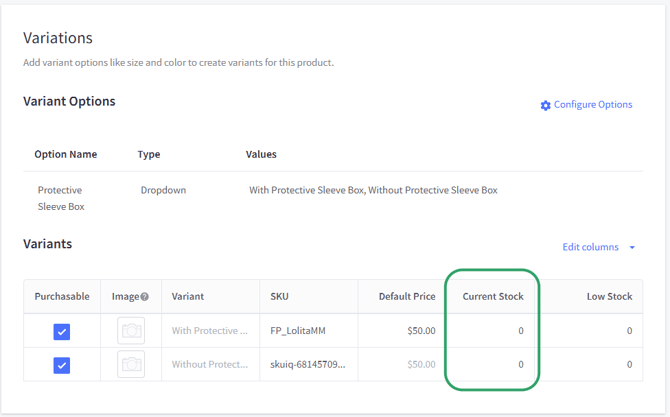
If you're working with an item with product variants, scroll down to the variants section, where the 'Current Stock' column will now be enabled.
7. Once you have stock added, even if you leave it at zero, hit 'Save' at the bottom right corner of your screen.
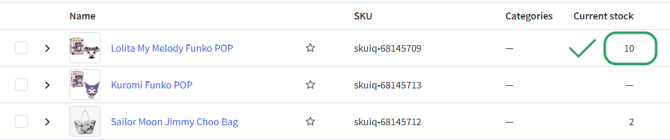
8. Now when you locate that same item on your products list, it should now show a numerical quantity attached to it.