![skuIQ_logo gradient.png]](https://knowledgebase.skuiq.com/hs-fs/hubfs/skuIQ_logo%20gradient.png?height=40&name=skuIQ_logo%20gradient.png)
Overview
Lightspeed X-Series's inventory management lets you toggle inventory tracking on or off for new and existing products, this feature is responsible for monitoring your stock levels, ensuring you know when items are running low. Only with this feature enabled, SKU IQ can accurately sync inventory with your eCommerce.
If tracking is off, Lightspeed X-Series may report zero stock, marking items as "OUT OF STOCK" online, or send a "null" stock value, disabling tracking and risking overselling. This can lead to inventory errors and customer frustration.
Please reference this guide to turn on inventory tracking on your Lightspeed X-Series POS and ensure stock quantity sync will be working for your account.
Step-by-step Guide
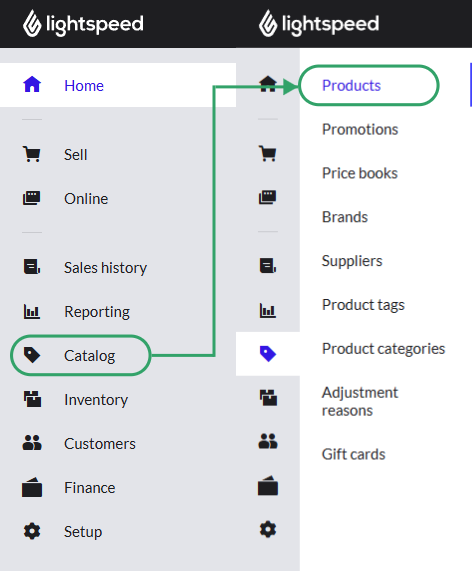
1. On your Lightspeed X-Series online dashboard, navigate to 'Catalog' on the left-hand menu and then 'Products'.
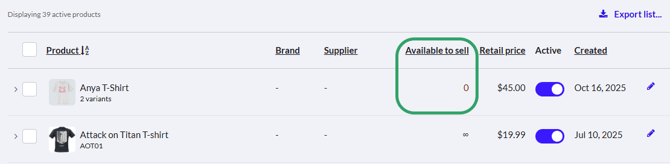
2. On the 'Available to sell' column of your product list, look for items with the infinite symbol '♾️', these are items not tracking inventory.

3. Click on the Pen Icon to the right of the item you want to enable tracking for.

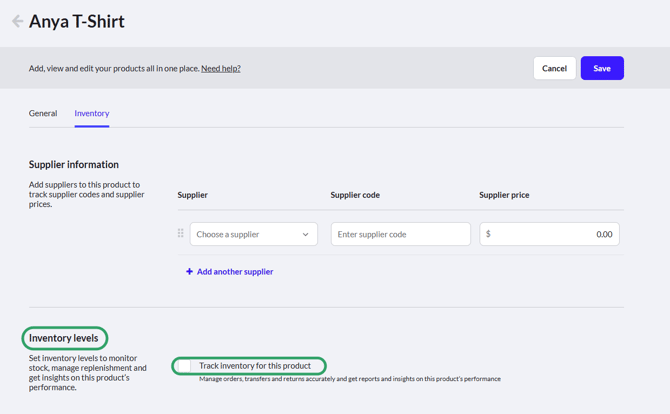
4. On the individual product page, navigate to 'Inventory levels' and toggle on the 'Track Inventory for this product' option.
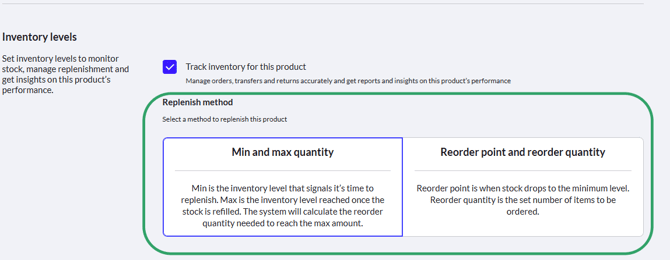
5. You'll be prompted to select a Replenish method for this item, which you can choose based on your personal preference.
6. Once you're done, hit 'Save' at the top of your page.

7. Your item should now show zero in stock. You can now either add stock manually on the Lightspeed X-Series system, or, if this item has a matching counterpart on your eCommerce, use the SKU IQ Link report to send stock into your POS.